
Help and guides
Guides for making your next move
Practical notes for building, checking and exporting GTA V and FiveM assets.
Try it on
Choose a wardrobe garment to see it on your ped with one click, or bring your own files or your own GTA V. Export costs the same for equivalent garments. Wardrobe terms.
Start with a project
From your clothing files to your server
A short path from your GTA V or your own .ydd/.ytd files to a FiveM resource.
Read the guide →GuideWhat a ped is made of
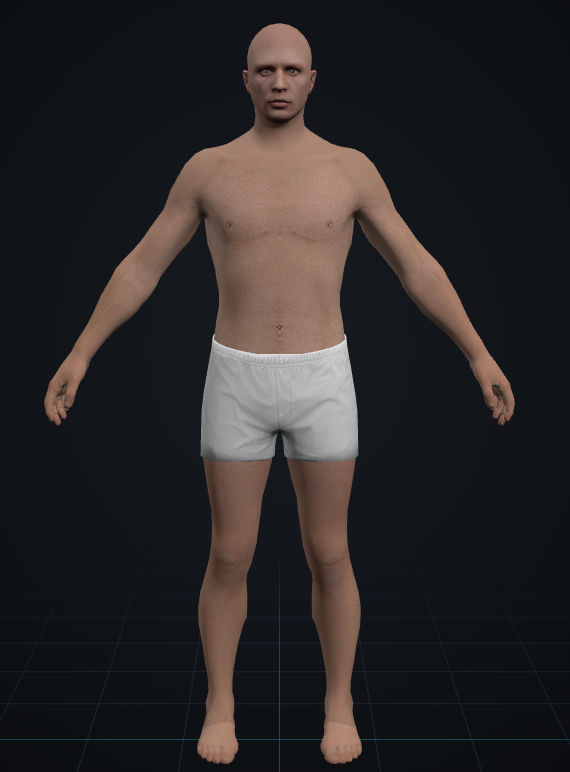
A GTA V ped is a character model plus the textures and metadata that tell the game how to use it. Keeping those parts together makes a project easier to inspect and export.
Read guide →GuideBuild from a base
A base project is a clean place to assemble a character. The choices and available base assets depend on what the editor currently offers in your session.
Read guide →GuideOpen a ped
Choose a file set, read validation messages and inspect the imported model.
Read guide →GuideAdd clothing
Use the clothing importer to inspect local garment files before adding them to a character. Keep the files in one folder so related models and textures stay together.
Read guide →Work in the editor
Find your way around
Move between the project files, 3D stage and inspector.
Read guide →GuidePreview and change garments
Use the stage to compare how the garments already in your project look together. A preview change can be temporary; check the selected project item before exporting.
Read guide →GuideBrowse the catalog
The catalog can inspect a clothing library you choose on your device. It does not mean every GTA V installation or online catalog is available automatically.
Read guide →GuideFind GTA V files
Game folders and archive paths differ between installations and can change with updates. Use any path reference as a clue, then confirm it on your own device.
Read guide →GuideUnderstand file names
A display name in the editor and a number in a game file do not always use the same numbering. Use names as clues, then inspect the actual file set.
Read guide →GuideAdjust body scale
A scale control changes the character preview and may affect how clothing fits. Treat it as a project setting, then inspect the complete outfit again.
Read guide →GuideAdjust face shape
Face controls apply to the selected head. Small steps make it easier to see which setting changed the result.
Read guide →GuideShape a garment
Shape tools can affect many vertices at once. Start with a small selection and keep an unchanged project copy so you can compare the fit.
Read guide →Textures and appearance
Edit a texture
Select a texture, inspect its layers and compare the model preview.
Read guide →GuideSkin, eyes and picture layers
Texture controls depend on what is selected. Confirm the head or garment before adding an image or changing a skin or eye texture.
Read guide →GuideHair colour variants
Hair colour variants are texture choices. Compare them on the selected hairstyle before changing or exporting the project.
Read guide →GuidePlace picture layers
A tattoo or decal is a texture edit. Its result depends on the target surface and how that surface is unwrapped. Keep the source image and original texture.
Read guide →GuideCreate a face from a photo
The local Face panel creates a skin layer and can shape the selected head. AI Face3D is separate and unavailable.
Read guide →GuideAI texture availability
Use the AI texture control only when it is active; review any real image returned in your session.
Read guide →GuideAI Face3D status
AI Face3D is currently unavailable.
Read guide →Review and export
Read validation messages
The validation list points to files or project conditions that need attention. Read the exact message and act on the item it identifies.
Read guide →GuideCompare texture settings
Texture optimization is a trade-off: a smaller file can reduce detail. Compare the original and proposed settings at the size you expect to use.
Read guide →GuideExport a project
Review the output files, download an archive and keep an editable copy.
Read guide →GuideInstall on a test server
An export gives you files to review. Check the archive and your server configuration yourself before making a resource available to players.
Read guide →Export and vehicle guides
Understand ped export errors
Read file checks and share a failed export with support by explicit consent.
Read guide →GuideInstall an exported resource
Keep the exported structure and verify the resource on a private FiveM server.
Read guide →GuideChoose a vehicle tool
Find supported changes for models, seats, wheels, lights and panels.
Read guide →Account and credits
Account access and recovery
Email and Discord sign-in, zero starting balance for new accounts, and no sign-up credits.
Read guide →GuideBalance and estimates
Use the amount shown in your signed-in account and the estimate displayed immediately before an action. Do not rely on an old screenshot or a price quoted elsewhere.
Read guide →Need help?
Ask Pedify support on Discord.
Open Discord support